
Early access · Release date: November 13, 2026
UpdatedZombies Aren't Real Controls: Hotkeys and Tools Explained
Master Zombies Aren't Real controls with every hotkey, safe zone edit, corridor trick and battle ability input. Plan faster and save more civilians today.
Jump to
Most runs in this horde-defense game are won or lost before the first zombie spawns. That makes fast, confident planning the real skill. The tutorial moves quickly, though, and it skips several shortcuts that make the planning phase much smoother. This guide covers the full set of Zombies Aren't Real controls: hotkeys, mouse tricks for drawing safe zones and aiming units, and the inputs for battle abilities. With these down, you spend your time on strategy instead of hunting through menus.
Quick Reference: Keyboard and Mouse Controls
These are the default bindings in the current Early Access build (v0.43.1, Windows).
| Input | What it does |
|---|---|
| Alt + middle mouse | Tilt the camera to inspect streets and building heights |
| C | Show special buildings by class |
| V | Show building heights (darker blue means taller) |
| 1 / 2 / 3 | Garrison / Mortar / Sniper |
| G | Place a gate |
| X | Refund a unit |
| Tab | Open the Loadout |
| Space | Start or pause the battle |
| Enter | Close a safe zone |
| Right-click | Add or remove a safe zone corner |
| Ctrl + Z | Undo |
| Shift + F | Jump to the next special building with no ability picked |
Many tools also use left-click-and-drag. You can paint garrisons or mortars across a row of buildings, aim snipers, drop paratroopers and spread out air strikes this way.
Camera and Map Views
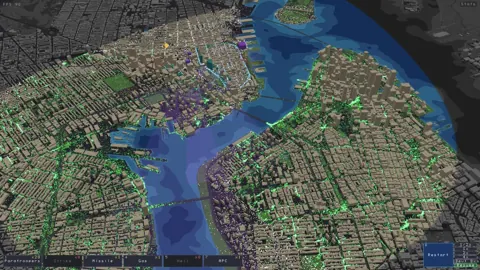
Start every level by holding Alt and dragging with the middle mouse button. Tilting the camera shows you which streets feed into your planned base and which rooftops stand above the rest.
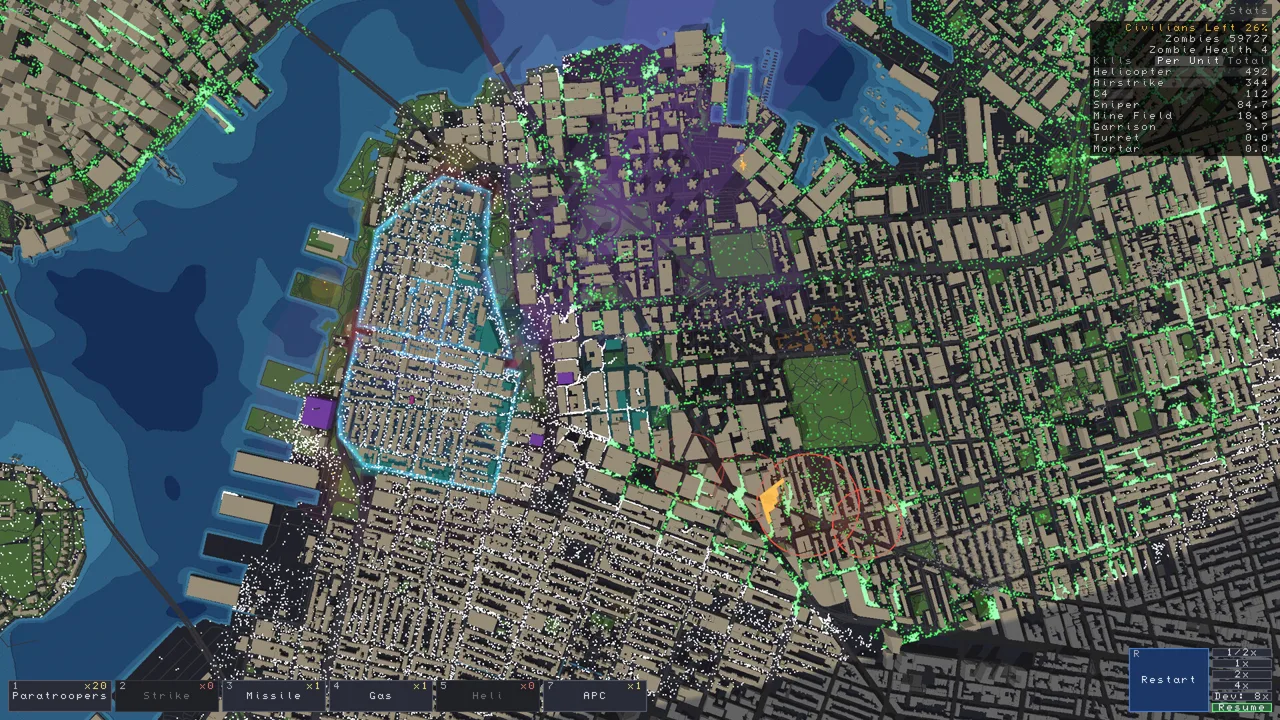 Image: Steam / Jogamedev
Next, cycle through the two overlays:
- C (class view): Special buildings light up by type. Civic buildings can become Police, Militia, Broadcast or Radio Tower. Rescue buildings offer Medic or Airlift. Trade buildings give Budget, Reduced Cost or Repair. Armory buildings give Supply or Command Post. Class view also displays your defenses' coverage, which helps you spot gaps along a wall.
- V (height view): Taller buildings show darker blue. Mortars and snipers get more range from height, so check this view before you place either one.
Update #1 (v0.43.1) added Rotate left and Rotate right camera controls. They have no default key, so bind them on the Controls tab if you want them.
Building and Editing Safe Zones
Select the Safe Zone tool and left-click to drop corners around the buildings and civilians you want to protect. Press Enter to close the shape. After that, you can reshape the zone freely:
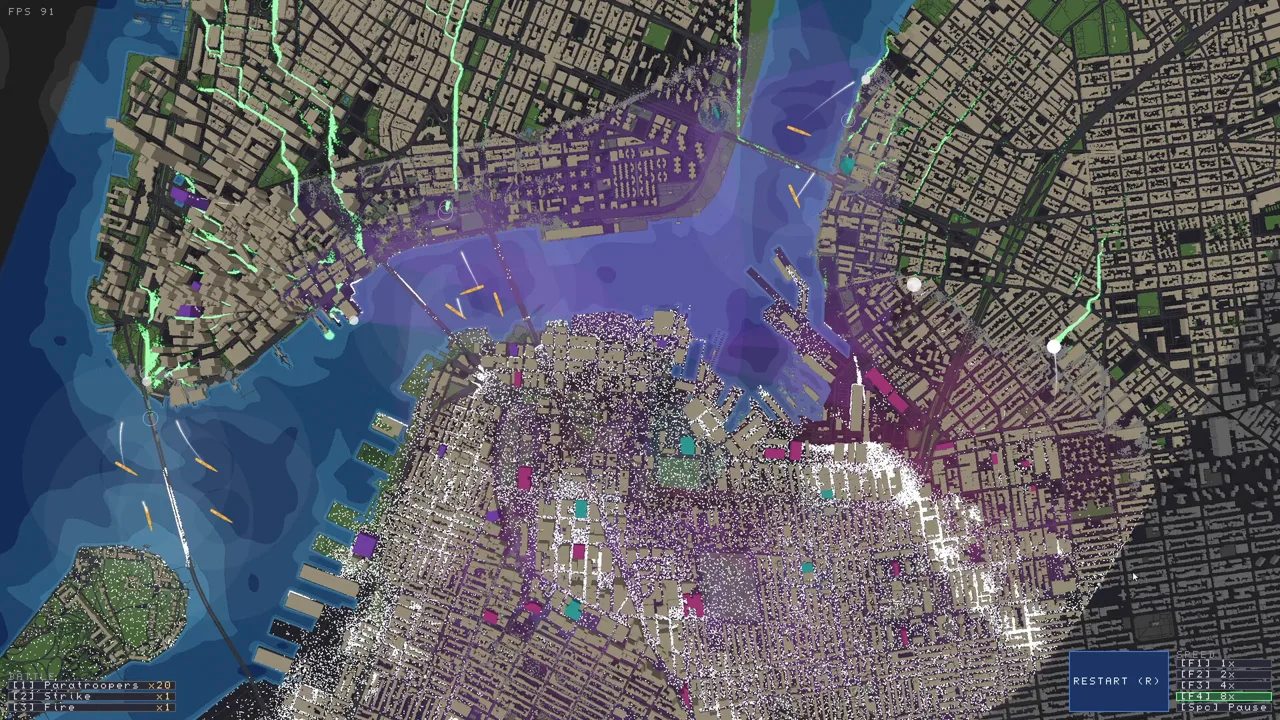 Image: Steam / Jogamedev
- Drag a corner to move it. The cost updates live as you drag.
- Right-click a wall to add a corner.
- Right-click a corner to delete it.
- Click the zone and press Upgrade in its panel to give the walls more HP.
Price scales with wall length, so a compact, rounded zone protects the most ground for the least money. Pull the walls in until every stretch sits inside a garrison's range, and leave no segment that nothing can shoot at.
Press G to place gates. A zone without gates is sealed, so civilians outside cannot get in, even with a Broadcast building calling them. Put gates on main roads and on any side civilians will run from. Since v0.43.1, calm civilians near a gate walk in on their own. Panicked civilians also head for gates from farther away than before.
After you claim a special building, it glows until you pick an ability for it. Press Shift + F to cycle through any you missed.
Placing and Aiming Units
 Image: Steam / Jogamedev
Garrisons, Mortars and Snipers
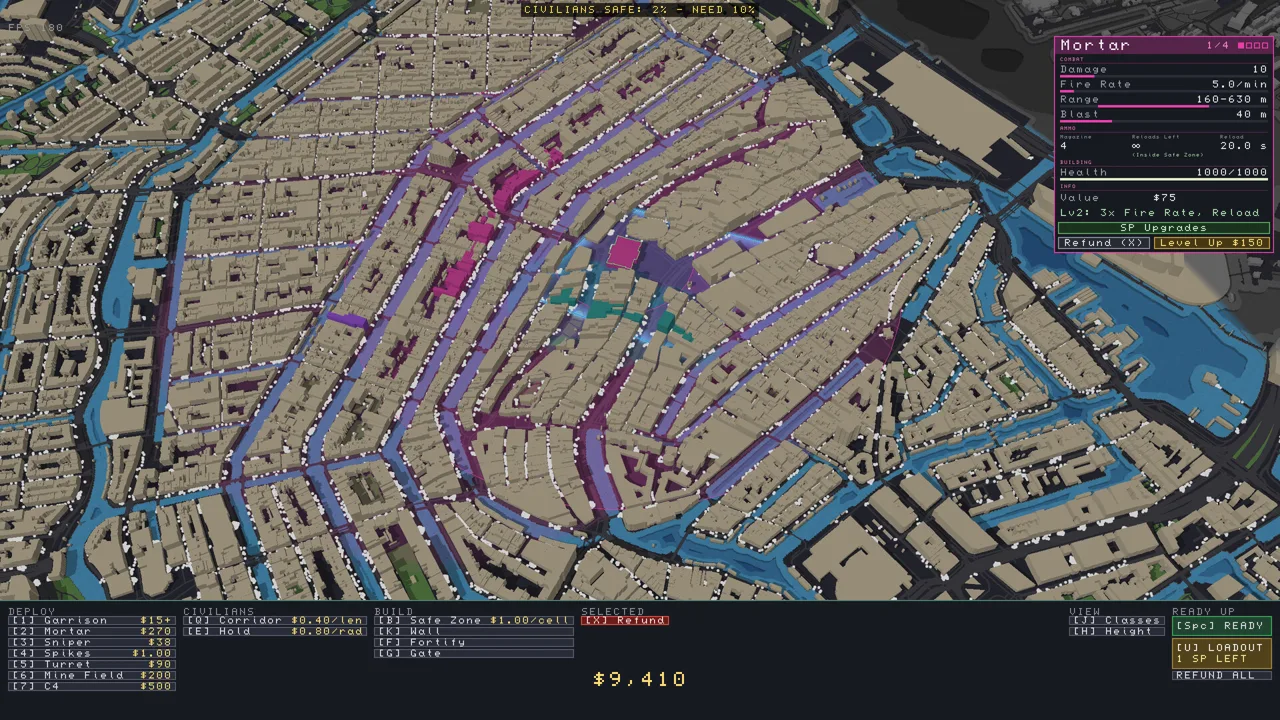
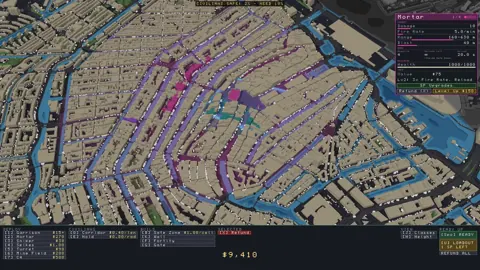
Press 1, 2 or 3, then click a building. Click-and-drag places a unit on every building you sweep over, which is the fastest way to line a wall with garrisons. Each new mortar costs $1 more than the previous one, and the button always shows the price of the next one.
To aim a sniper, place it and hold the left mouse button, then drag to set its firing arc. Point it down a bridge or a long road. Then set its targeting mode in the unit panel:
- Nearest First for choke points
- Farthest First for long-range coverage
Upgrading and Refunding in Bulk
Drag-select a group of units to level up or refund them by type. This lets you upgrade every garrison in a zone in one action. Press X to refund a single unit. When a level expands and your old layout no longer fits, Refund All wipes the board and returns the full cost.
Unit Behavior Toggles
Police stations and paratroopers each have two modes:
- Police: Guard keeps officers inside the zone. Pursue sends them out to hunt.
- Paratroopers: They land in Hunt mode. Switch them to Guard to keep them defending a safe zone's walls.
C4 does nothing until you trigger it. Use the detonate tool, or select the charge and detonate it directly.
Moving Civilians: Corridors and Holds
Click and drag to lay a yellow corridor lane. Civilians who enter it move along it. Hold Ctrl and use the mouse to widen the lane.
Widening now affects the price. Since v0.43.1, corridors cost a $30 start fee plus a charge based on the area they cover. At default width, a 300 m corridor dropped from $120 to about $60, and a 1 km corridor dropped from $400 to about $135. A wider lane costs more than a narrower one.
The same update made corridors steer civilians along streets around buildings to the corridor's end. If a gate stands at that end, civilians walk through it. End a corridor just inside a Broadcast radius, and the Broadcast building pulls civilians the rest of the way.
Hold places two circles. The outer circle draws civilians toward the inner one, and the inner circle keeps them there. Holds got more expensive in v0.43.1, so use a Broadcast building first and save holds for gaps it cannot reach.
Battle Abilities and Speed Controls
Press Tab to open the Loadout and spend Skill Points before you press Space. Unspent points do nothing. During the battle, use these inputs:
- Paratroopers: Hold the left mouse button and drag to paint landing spots. The plane drops the squad when you release.
- Air strike: Drag to spread six bombs in a line. A single click stacks all six bombs on one spot, which is how you break a bridge.
- Firebomb: Target green space, where the fire spreads, or a bridge the horde must cross.
- Speed: Pause at any time and switch between 1x and 4x.
Since v0.43.1, mortars, the battleship, tank, helicopter, mines and burning oil no longer kill civilians or damage safe zone walls. Abilities you aim yourself still do: airstrike, fire bomb, cluster bomb, cruise missile, AC-130, nuke, Controlled Demolition and C4. Check where your civilians are before you release the mouse button.
The Medivac's Leave Now button has been removed. The Medivac now lifts off on its own when it is full or nobody has boarded for a few seconds.
Settings, Rebinding and Reading Results
- Keybinds: Rebind any action on the Controls tab. Mouse 4 and Mouse 5 can be bound as of v0.43.1.
- Restore Default Settings (Gameplay tab): Resets key bindings, gameplay options, volume, display and accessibility settings. It keeps your progress, difficulty and language.
- Difficulty: Choose Fixed or Adaptive under Settings > Gameplay.
- Civilian crowd noise: Toggle it under Settings > Audio.
During a battle, hover over the DPS meter to see a heat map of which units deal the most damage. The end screen breaks down kills both per unit and in total. Check the total figure before you judge a unit like your police, since a per-unit number can make them look weaker than they are. To rebuild a run that worked, click its badge on the level screen to see the exact setup you used.
FAQ
Does restarting a battle affect achievements?
Yes. Since v0.43.1, using RETRY rules out the Flawless achievement for that campaign. Beginner's Luck, one of the game's 14 achievements, requires clearing a scenario on your first attempt. Plan carefully before you press Space on new levels.
Can I play Zombies Aren't Real on Mac?
The game officially supports Windows only. A Mac beta is available on Steam: right-click the game in your library, choose Properties > Game Versions & Betas, and select "test-mac-version." Grab the game from the Zombies Aren't Real Steam page.
Why can't I find the camera rotation keys?
Rotate left and Rotate right ship unbound. Open the Controls tab and assign keys to both.
Continue with
 Zombies Aren't Real: How to Build Safe Zones That HoldLearn how to build safe zones in Zombies Aren't Real: compact walls, gates, Broadcast buildings, garrisons, and fallback zones that keep civilians alive.
More in Guide
Zombies Aren't Real Beginner Tips: Win Your First Cities
Zombies Aren't Real beginner tips for safe zones, broadcast towers, snipers, mortars and airstrikes. Learn setups that save more civilians in each city.
Zombies Aren't Real Chokepoints: Bridges, Z Walls & Turrets
Master Zombies Aren't Real chokepoints with Z walls, turrets, island safe zones and bridge demolition. Learn how to stall the horde and starve it out.
Zombies Aren't Real Level 5 Guide: How to Beat Boston
Stuck on Zombies Aren't Real level 5? Learn how to rebuild your safe zones, lock down bridges, and time fire bombs to finally clear Boston's fifth stage.
Continue exploring
Zombies Aren't Real Chicago Map Guide: Save More Civilians
Defend the Zombies Aren't Real Chicago campaign with smarter safe zones, gates, bridge control and the Update #1 changes. Learn how to save more civilians.
Zombies Aren't Real Coop Guide: Safe Zones, Gates and Tips
Zombies Aren't Real coop pairs you with one friend to defend real cities. See how online co-op works, what Update #1 fixed, and how to build safe zones.
Join the community
Official channels for news, updates and player help: